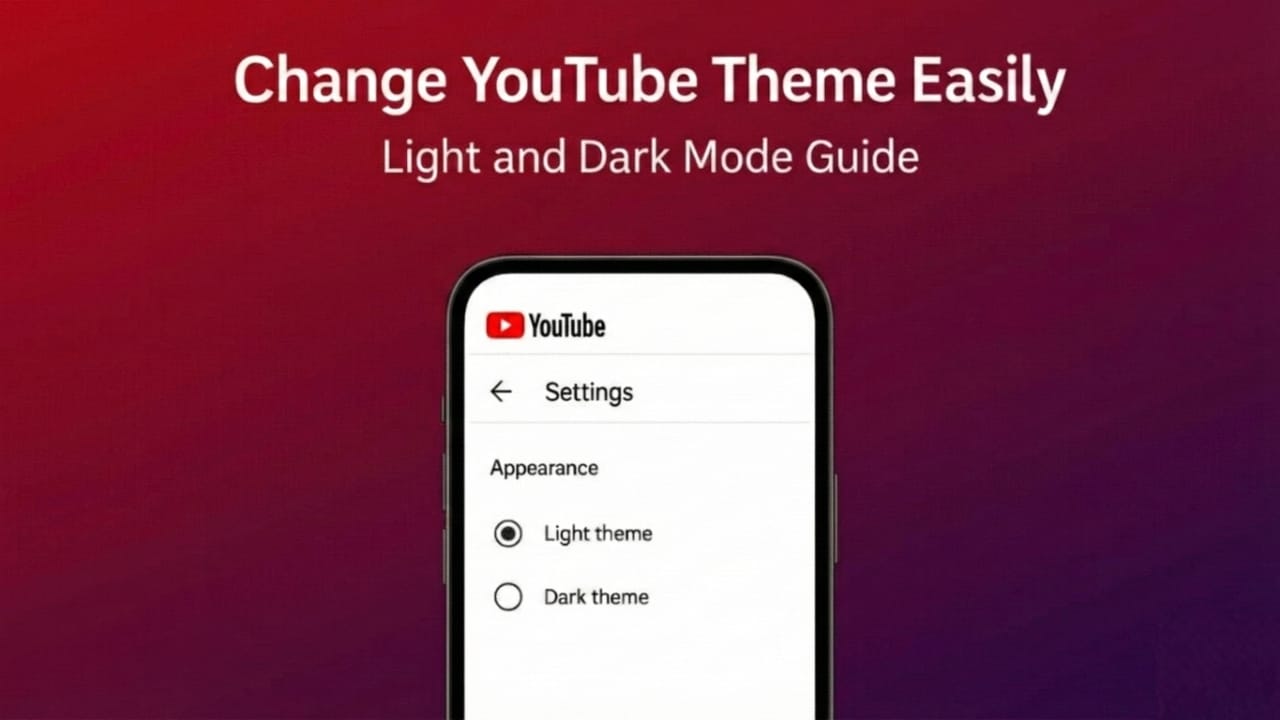
Most apps today offer a dark theme, and YouTube is no different. Whether you enjoy watching videos late at night or just want a cleaner look during the day, YouTube lets you switch between light and dark modes easily. If you haven’t tried it yet, this quick guide will help you get started.
1. Why Use YouTube’s Dark Mode?
Dark mode isn’t just a trend — it offers a few practical benefits:
- It feels more comfortable on the eyes, especially in low-light rooms.
- Phones with OLED/AMOLED screens may use slightly less battery since darker pixels consume less power.
- Many viewers simply prefer the deeper, more cinematic feel.
Light mode, on the other hand, works better in bright surroundings because it keeps the screen easy to read.
Choosing a theme based on where you are and when you’re watching can make your viewing experience smoother.
Also read: How to Reset Your Instagram Feed – A Clean & Easy Guide
2. How to Change Theme on YouTube App (Android & iOS)
Changing the YouTube theme on your phone takes just a moment:
- Open the YouTube app.
- Tap your profile photo in the top-right corner.
- Go to Settings.
- Select General or a similar section (depends on your app version).
- Tap Appearance or Theme.
You’ll get options like:
- Use device theme – YouTube matches your phone’s system theme
- Light theme
- Dark theme
Choose the one you prefer. If you select Dark theme, the app will switch instantly without changing your phone’s overall settings.
3. How to Switch Theme on YouTube Website (Desktop/Laptop)
Using YouTube in a browser? Here’s how to change the theme:
- Open YouTube in any web browser.
- Sign in to your account (optional but helpful).
- Click your profile icon on the top right.
- Select Appearance or Theme.
- Choose:
- Use device theme
- Light
- Dark
If you choose “Use device theme,” YouTube will adapt to your computer’s system settings automatically.
4. Which Theme Should You Use?
Here’s a simple way to decide:
- Dark Mode: Better for nighttime use, dim rooms, or if you want a more immersive feel.
- Light Mode: Ideal for outdoor viewing or bright environments.
- Use Device Theme: Best for users who already switch between light and dark on their phone or PC — YouTube will follow automatically.
Using a consistent theme across apps can make your screen easier on your eyes.
5. Quick Fixes if the Theme Doesn’t Change
If the theme isn’t updating, try these simple solutions:
- Update your YouTube app to the latest version.
- Clear the app cache on mobile devices and restart the app.
- On desktop, refresh the page or clear your browser cache.
- If “Use device theme” doesn’t work, check your phone or computer’s display settings.
- Sometimes YouTube rolls out features slowly, so you might just need to update or wait.
Also read: How to Create a Telegram Channel – A Simple Beginner-Friendly Guide
Final Words
Customizing YouTube’s theme is a small change that can make your daily viewing more comfortable. Whether you prefer the clean brightness of light mode or the relaxed feel of dark mode, switching between them is quick and easy. Try both and see which one suits your eyes and your environment the best.

I am a passionate Tech Writer with strong industry experience. I enjoy exploring the latest technological innovations and sharing clear, helpful insights with my audience.”