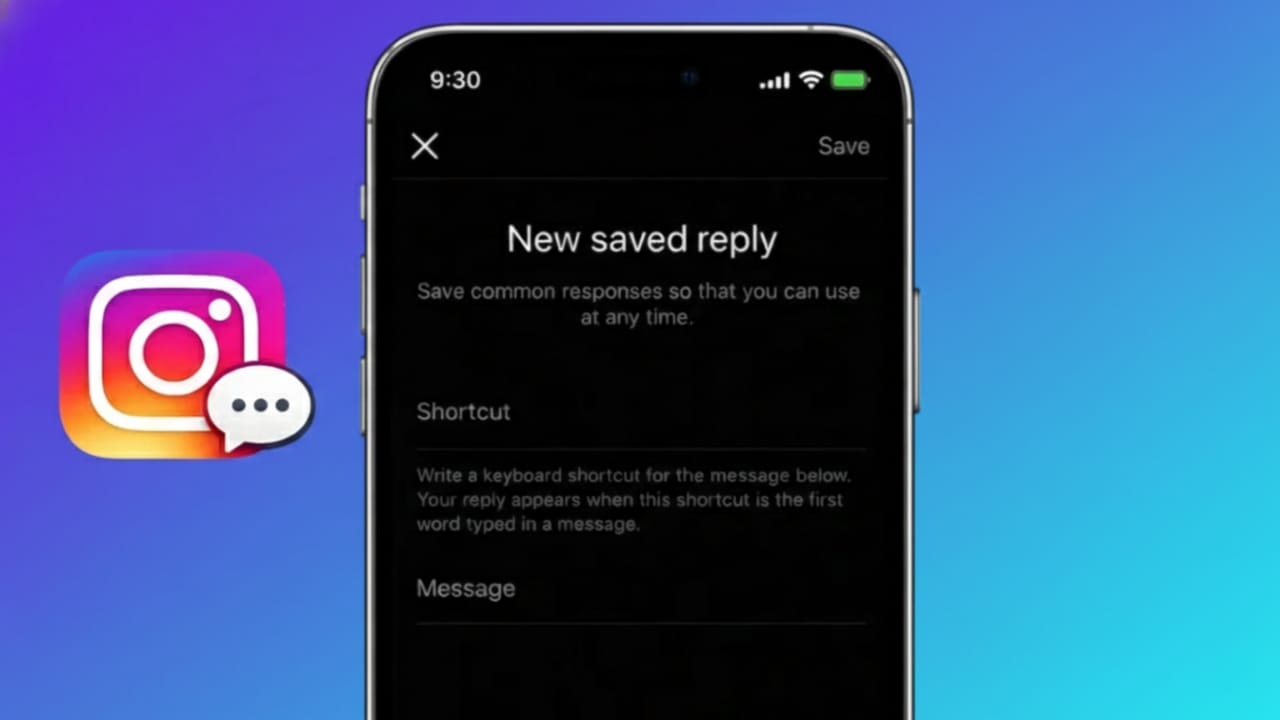
If you often receive the same questions on Instagram, replying again and again can feel tiring. Saved Replies solve this problem. They allow you to store ready-made messages and send them instantly in your DMs. This means less typing and faster responses.
This option is very helpful for creators, small businesses, and anyone who handles a lot of similar messages every day.
Below is a simple and clear guide that explains what Saved Replies are, who can use them, and how to set them up properly.
Also read: How to Save, Find, and Remove Drafts on Instagram
What Are Saved Replies?
Saved Replies are short messages that you write once and save inside Instagram. Later, you can insert these messages into chats by typing a small shortcut.
They are useful because they help you:
- Reply quickly to common questions
- Keep your answers consistent
- Manage DMs more smoothly
- Reduce typing work
This feature is already available inside Instagram. You do not need to install any third-party app.
Who Can Use Saved Replies?
Saved Replies are available only for:
- Business accounts
- Creator accounts
- Professional accounts
If you are using a personal account, you will need to switch to a professional type to unlock this feature. The switch is free and can be done from settings.
How to Set Up Saved Replies on Instagram
Creating a saved reply takes only a few minutes.
Steps for Android and iPhone
- Open the Instagram app
- Go to your profile page
- Tap the menu icon (three lines)
- Open Settings and privacy
- Tap Creator tools and controls or Business tools
- Select Saved replies
- Tap Add new saved reply
- Enter a shortcut (for example: “price” or “info”)
- Write the full message
- Save it
Your saved reply is now ready to use anytime.
How to Use Saved Replies in DMs
Using a saved reply is very easy once it is created.
Steps
- Open Instagram messages
- Open any chat
- Type the shortcut you saved
- Tap the reply when it shows up
- Send the message
Instagram will automatically insert the full message for you.
How to Edit or Delete Saved Replies
You can update or remove your saved replies whenever needed.
Steps
- Go to Settings and privacy
- Open Saved replies
- Select the reply you want to change
- Edit the text or delete it
- Save your changes
This helps keep your replies fresh and accurate.
Tips for Using Saved Replies Effectively
- Keep your messages short and easy to understand
- Use simple and memorable shortcuts
- Do not sound too generic
- Add small personal touches when needed
Saved Replies should feel helpful and natural, not automated.
Common Problems and Solutions
If you cannot find the Saved Replies option:
- Make sure your account is set to Business or Creator
- Update the Instagram app to the latest version
- Check the correct settings section
Sometimes the option appears in slightly different places based on account type.
Also read: How to Grow Your Instagram Using ChatGPT – A Simple Beginner’s Guide
Final Words
Saved Replies on Instagram are a smart way to handle messages without stress. If you reply to followers or customers daily, this feature can save a lot of time and effort. Once you set it up, managing DMs becomes faster, cleaner, and more organized.

I am a passionate Tech Writer with strong industry experience. I enjoy exploring the latest technological innovations and sharing clear, helpful insights with my audience.”