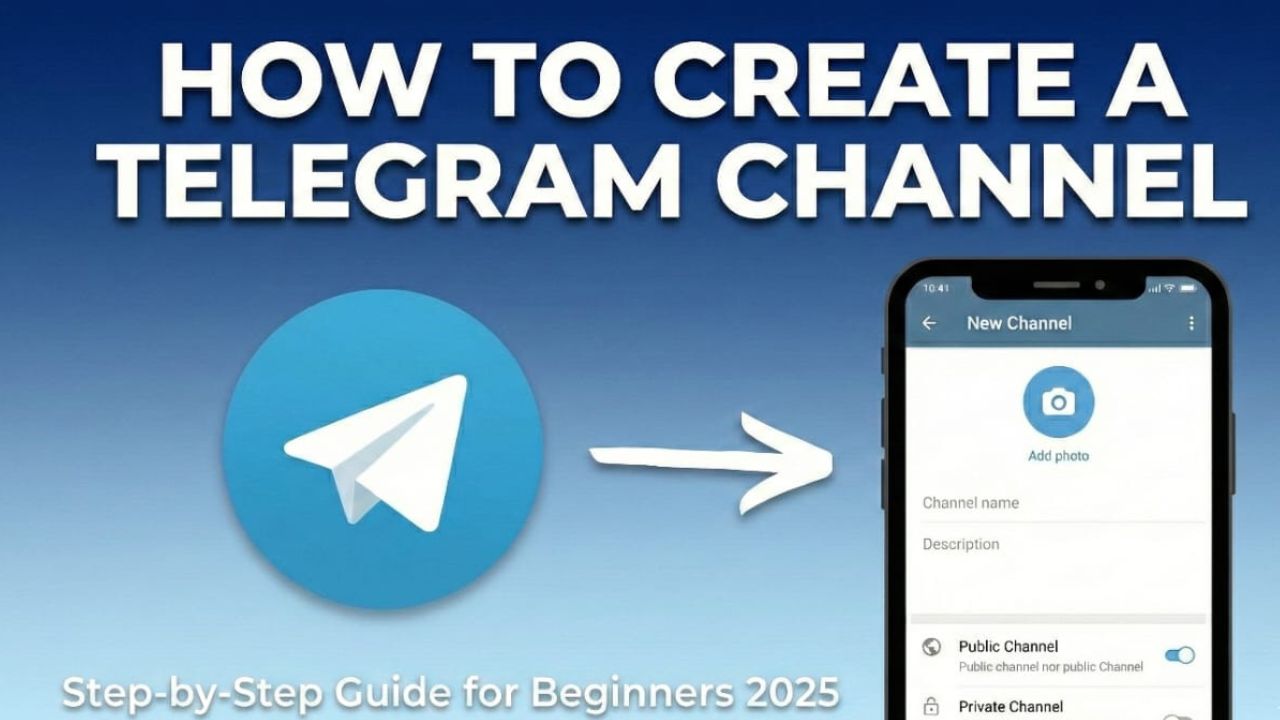
If you want a clean and easy way to share updates or information with a large number of people, a Telegram channel is a great option. Unlike Telegram groups, channels work in a one-direction format—only the admins can post. This keeps the feed organised and free from unnecessary messages.
Below is a beginner-friendly guide to help you create your own Telegram channel from scratch.
1. Why Telegram Channels Are Helpful
Before you get started, it’s good to understand what makes Telegram channels so popular:
- Anyone can subscribe, and there’s no limit on how many people can join.
- Only admins can publish posts, so the channel stays neat and focused.
- You can choose whether your channel is public or private.
- They are perfect for announcements, business updates, news sharing, brand promotions, or community-building.
- Multiple admins can manage the channel together.
Overall, Telegram channels are lightweight, fast, and designed for easy content sharing.
Also read: How to Move WhatsApp and Telegram Chats From One Android Phone to Another Without Losing Media
2. How to Create a Telegram Channel on Mobile
Whether you use an Android phone or an iPhone, the steps are almost identical.
Steps to create a channel on your phone:
- Open the Telegram app.
- Tap the pencil or new message icon.
- Select New Channel.
- Type the name of your channel.
- Add a short description if you want—this helps visitors understand what your channel offers.
- Upload a profile picture to give your channel a clear identity.
- Choose your channel type:
- Public – visible in Telegram search and can have a custom link.
- Private – people can join only through an invite link.
- If you choose public, create your custom channel link.
- Tap Next and add members if you want (this step is optional).
Your channel is now set up and ready to use.
3. How to Create a Telegram Channel on Desktop
If you prefer using Telegram on your laptop or PC, the process is just as simple.
Steps on desktop or web:
- Open Telegram Desktop or Telegram Web.
- Click the menu button.
- Select New Channel.
- Enter the name, description, and profile photo.
- Choose whether your channel will be public or private.
- Confirm the details and create the channel.
Once done, your channel will instantly sync across your devices.
4. Customise Your Channel for a Professional Appearance
After the channel is created, you should personalise it so new visitors understand what your channel is about.
Things you can customise:
- Profile image: Use a neat logo or a simple graphic.
- Description: Keep it short, clear, and informative.
- Channel link: Create a simple, shareable link.
- Admin settings: Add other admins if needed.
- Linked chat: Attach a group for discussions if you want to allow conversations.
- Reactions: Let subscribers react to posts.
- Notifications: Choose whether subscribers receive alerts.
A well-set-up channel builds trust and looks more professional.
5. Start Posting and Grow Your Audience
Setting up the channel is only the first step. Growth happens through consistent and useful posting.
Tips to grow your channel:
- Share helpful and relevant content regularly.
- Use photos, videos, polls, and links to make your posts more engaging.
- Promote your channel link on your website and social platforms like Instagram and WhatsApp.
- Keep your messages simple and friendly.
- Don’t post too frequently, or people might mute your channel.
Growth takes time, but consistency and quality always help.
Also read: How to Reset Your Instagram Feed – A Clean & Easy Guide
Final Thoughts
Creating a Telegram channel is easy, but building a loyal audience requires patience and purpose. Choose a suitable name, add a clear description, set up a good profile image, and start sharing valuable updates. Promote your channel wherever it fits naturally.
With steady posting and a clear theme, your Telegram channel can turn into a powerful space for your brand, business, or community.

I am a passionate Tech Writer with strong industry experience. I enjoy exploring the latest technological innovations and sharing clear, helpful insights with my audience.”