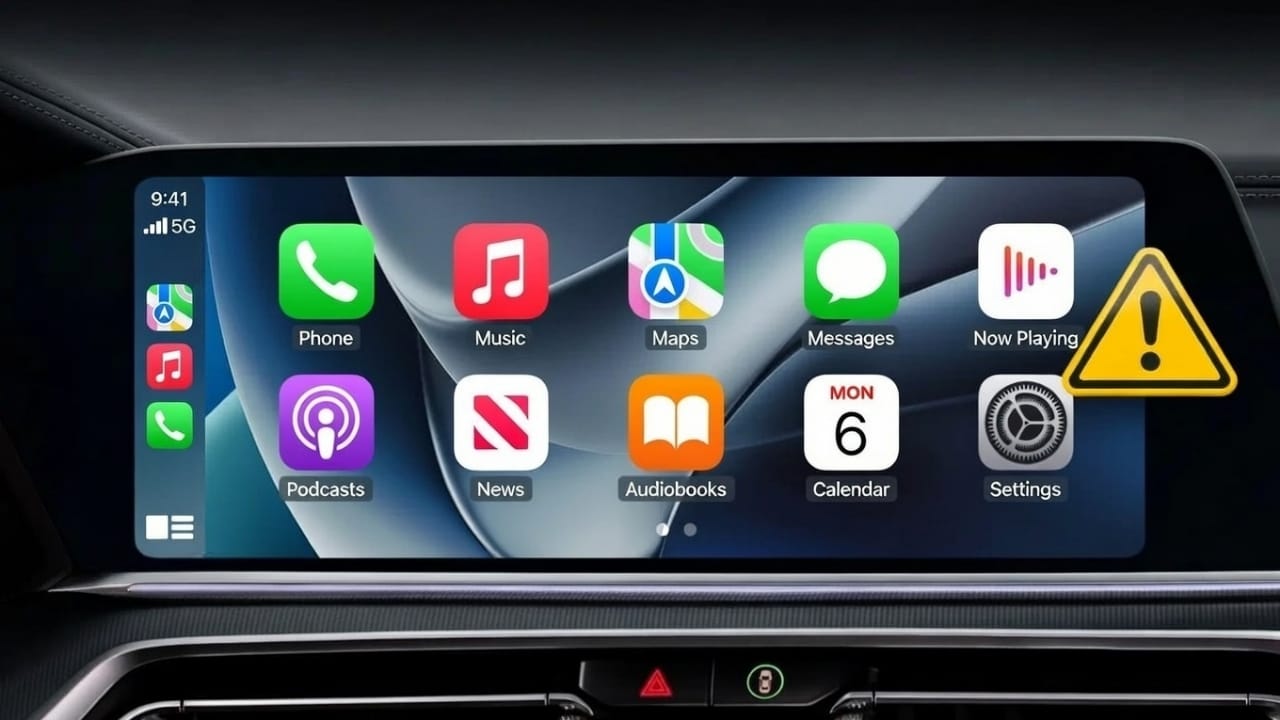
Apple CarPlay not working can be frustrating, especially when you rely on it for navigation, calls, and music while driving. CarPlay is designed to make driving safer by showing important iPhone features on your car’s screen. When it suddenly stops working, it can feel confusing and stressful.
The good news is that most Apple CarPlay issues are minor. In many cases, you can fix them on your own by checking a few settings or connections. This guide explains the reasons clearly and walks you through simple solutions, step by step, in easy language.
Also read: Apple Music vs Spotify: Which Streaming App Makes More Sense in India?
Why Apple CarPlay Stops Working
Before trying fixes, it helps to know what usually causes the problem. CarPlay issues can come from the iPhone, the car, or the connection between them. Both wired and wireless CarPlay can face trouble.
Common reasons include:
- A damaged or low-quality USB cable that only charges the phone
- Using the wrong USB port in the car
- Bluetooth or Wi-Fi turned off (for wireless CarPlay)
- Temporary software glitches in the car’s system
- Siri being disabled
- Screen Time restrictions blocking CarPlay
- VPN apps interfering with wireless connections
- Outdated iOS on the iPhone
- Old software in the car’s infotainment system
Once you know the possible cause, fixing the issue becomes much easier.
Quick Checks to Try First
Many CarPlay problems are solved in minutes by doing basic checks. Always start here.
Simple things to confirm:
- Make sure your car actually supports Apple CarPlay
- Restart your iPhone once
- Turn off the car completely, wait a few seconds, then start it again
- Check that Siri is enabled on your iPhone
- Ensure Bluetooth is turned on
- Ensure Wi-Fi is turned on (important for wireless CarPlay)
- Turn off Airplane Mode if it’s enabled
These small steps often fix the problem instantly.
Fixing Wired Apple CarPlay Issues
If you use CarPlay with a cable, the connection quality matters a lot.
Use a proper USB cable
- Try the original Apple cable first
- Cheap or old cables may charge the phone but won’t transfer data
- Use a certified cable that supports data transfer
Try different USB ports in the car
- Many cars have more than one USB port
- Only one port usually supports CarPlay
- The front or driver-side port is most likely the correct one
Clean the iPhone charging port
- Dust or lint inside the port can loosen the connection
- Check if the cable fits firmly
- Use a soft wooden toothpick or a dry brush
- Never use metal objects
Allow trust permission
- Unlock your iPhone when connecting it to the car
- Tap “Trust” if a permission message appears
- If you denied it earlier, reset permissions:
- Go to Settings → General → Transfer or Reset iPhone
- Tap Reset Location & Privacy
- Reconnect the cable and allow trust again
Fixing Wireless Apple CarPlay Problems
Wireless CarPlay depends on both Bluetooth and Wi-Fi working smoothly.
Restart Bluetooth and Wi-Fi
- Turn off Bluetooth and Wi-Fi on your iPhone
- Wait about 10 seconds
- Turn them back on
- This refreshes the connection between the phone and the car
Enable Auto-Join for the car’s Wi-Fi
- Wireless CarPlay uses Wi-Fi for screen sharing
- Bluetooth only starts the connection
- Make sure Auto-Join is enabled:
- Open Settings → Wi-Fi
- Tap the info icon next to your car’s network
- Turn on Auto-Join
Turn off VPN apps
- VPNs can block local connections
- Wireless CarPlay needs direct communication
- Disable the VPN temporarily and reconnect CarPlay
Advanced Fixes if CarPlay Still Doesn’t Work
If basic solutions don’t help, try these deeper fixes.
Check Screen Time restrictions
- Screen Time can quietly block CarPlay
- Go to Settings → Screen Time
- Tap Content & Privacy Restrictions
- Open Allowed Apps
- Make sure CarPlay is turned on
Remove and re-add your car
- Go to Settings → General → CarPlay
- Tap your car under My Cars
- Select Forget This Car
- Remove your phone from the car’s Bluetooth list
- Pair both again as if setting up for the first time
Update your iPhone
- Older iOS versions may have CarPlay bugs
- Updates often fix connection problems:
- Go to Settings → General → Software Update
- Install the latest available update
Reset network settings
- This clears saved Wi-Fi and Bluetooth data
- Useful for wireless CarPlay issues:
- Go to Settings → General → Transfer or Reset iPhone
- Tap Reset Network Settings
- Reconnect Wi-Fi and Bluetooth afterward
Also read: How to Create WhatsApp Chat Shortcuts on iPhone
Final Thoughts
Apple CarPlay not working is usually easy to fix. In most cases, the problem comes from cables, settings, or temporary software issues. Wireless CarPlay needs Bluetooth and Wi-Fi to work together, and features like Siri, Screen Time, and VPN apps play a big role.
Start with simple checks before trying advanced steps. Keeping your iPhone updated also prevents many hidden bugs. By following this guide carefully, you can get Apple CarPlay running smoothly again and enjoy a safer, more comfortable drive.

I am a passionate Tech Writer with strong industry experience. I enjoy exploring the latest technological innovations and sharing clear, helpful insights with my audience.”