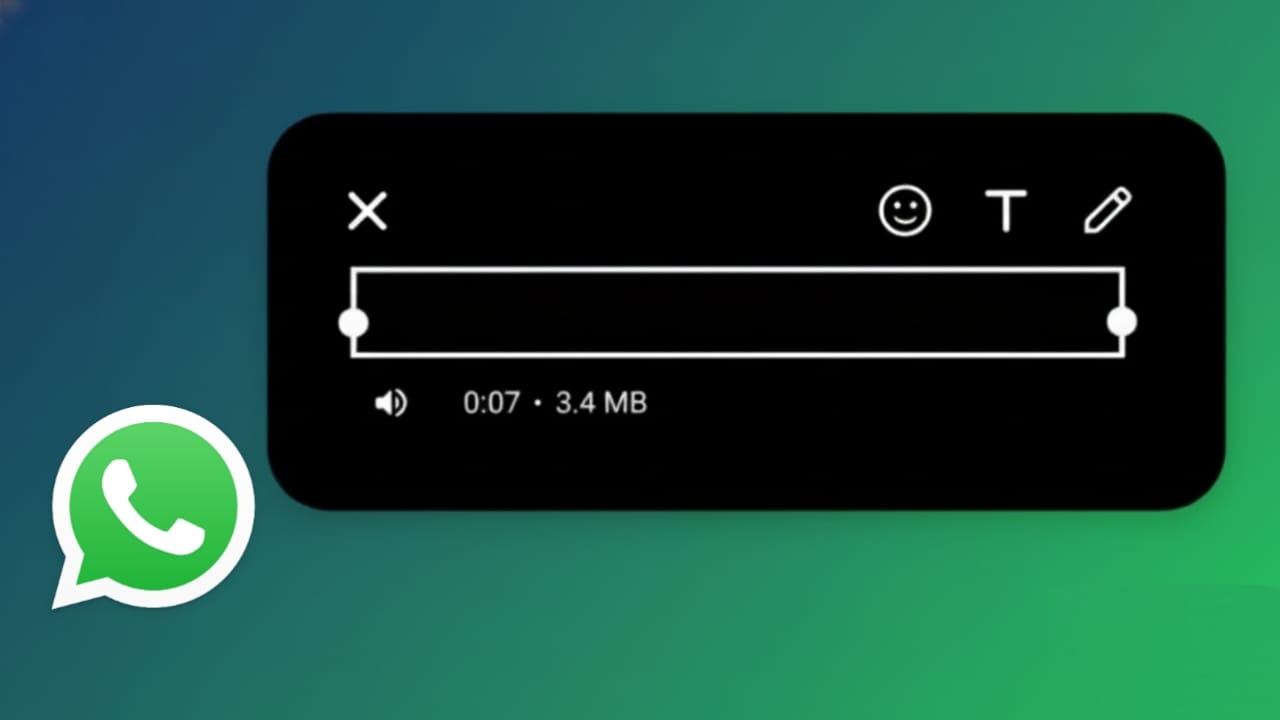
WhatsApp has grown beyond simple text chats. Today, it also allows you to make basic edits to videos before sending them. You can cut unwanted parts, rotate clips, add text or stickers, turn off sound, and even send short videos as GIFs. All of this works inside the WhatsApp app itself, so there is no need to install any extra software.
This guide explains how WhatsApp’s video editing tools work on both Android and iPhone, using easy steps that anyone can follow.
Also read: WhatsApp Call Status Messages Explained in Simple Words
Video Editing Tools Available in WhatsApp
Before you send a video, WhatsApp gives you several simple editing options. You can:
- Shorten the video by trimming it
- Crop or rotate the frame
- Add text, emojis, stickers, or drawings
- Mute the original audio
- Convert short clips into GIFs
- Preview the final video before sending
These features exist on both Android and iOS. The tools are the same, but the screen layout may look slightly different.
Editing Videos in WhatsApp on Android
Follow these steps to edit a video on an Android phone:
Step 1: Open a Chat
Launch WhatsApp and open the conversation where you want to send the video.
Step 2: Pick the Video
Tap the attachment icon and choose Gallery. Select the video from your phone.
Step 3: Trim the Clip
A timeline will appear at the top. Move the sliders on both sides to remove unwanted parts.
Step 4: Crop or Rotate
Tap the crop icon. From here, you can resize the video, rotate it, or change the aspect ratio.
Step 5: Add Text or Stickers
Use the tools at the top to write text, draw on the video, or place emojis and stickers.
Step 6: Turn Off Sound
Tap the speaker icon if you want to send the video without audio.
Step 7: Send the Video
Preview everything once, then tap Send.
Editing Videos in WhatsApp on iPhone
On iPhone, the process is almost the same, with small visual changes.
Step 1: Open the Chat
Go to the WhatsApp conversation where the video will be sent.
Step 2: Select the Video
Tap the plus icon and choose Photos & Videos. Pick the video you want.
Step 3: Cut the Video
At the bottom, use the trimming bar to shorten the clip by dragging both ends.
Step 4: Adjust the Frame
Tap the crop icon to resize, rotate, or realign the video.
Step 5: Add Text or Emojis
You can add captions, stickers, emojis, or draw directly on the video.
Step 6: Mute the Audio
Tap the mute button if you do not want sound in the video.
Step 7: Send
Once satisfied, tap Send.
Sending a Video as a GIF on WhatsApp
WhatsApp also allows short videos to be shared as GIFs.
Here is how it works:
- Choose a video
- Trim it to under six seconds
- The GIF option will appear automatically
- Select it and send
This feature works on both Android and iPhone.
WhatsApp Video Size and Length Limits
Keep these limits in mind while editing:
- Maximum video size: up to 2 GB
- GIF length: roughly 6 seconds
- Editing and compression may reduce quality
- WhatsApp automatically compresses videos to save data
Things You Cannot Do in WhatsApp Video Editing
WhatsApp’s editor is designed for quick edits, not advanced work. You cannot:
- Add background music from your phone
- Use professional filters
- Combine multiple videos into one
- Adjust brightness, contrast, or color levels
For these features, a separate video editing app is required.
Tips to Maintain Better Video Quality
- Use Wi-Fi when sending large videos
- Avoid too much cropping or trimming
- Keep the video resolution reasonable
- Do not edit and resend the same video multiple times
Also read: How to Silence WhatsApp Calls From One Person Without Blocking Them
Final Thoughts
WhatsApp’s built-in video editor is simple but very practical. It allows you to make quick changes, add personal touches, and send videos instantly without leaving the app. Whether you use Android or iPhone, the experience is smooth and easy.
For everyday sharing, these tools are more than enough. If you need advanced effects or professional editing, dedicated apps are better. But for fast, clean, and convenient video sharing, WhatsApp does the job well.

I am a passionate Tech Writer with strong industry experience. I enjoy exploring the latest technological innovations and sharing clear, helpful insights with my audience.”