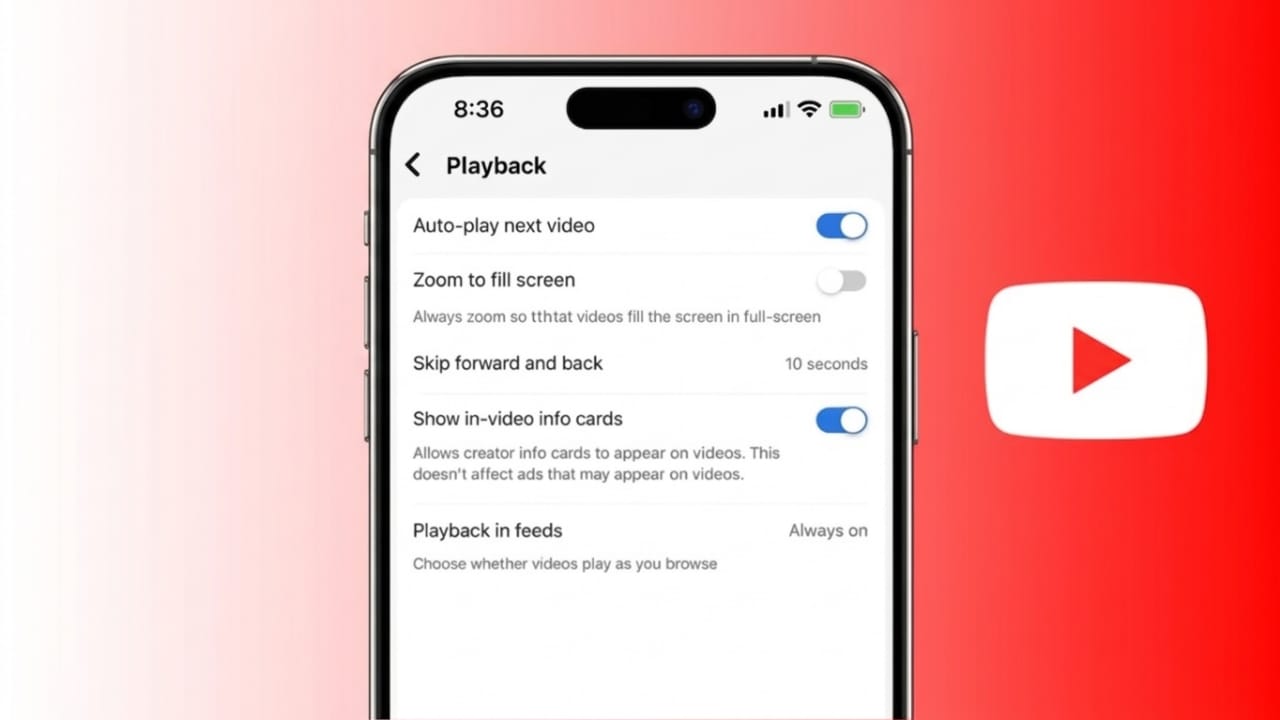
YouTube’s autoplay feature starts the next video as soon as the current one finishes. While this can keep content flowing without any effort, many people prefer to switch it off. It helps save internet data, reduces distractions, and gives you better control over what you watch.
This simple guide explains how to turn off autoplay on different devices, including smartphones, computers, and smart TVs.
Also read: 3 Simple Ways to Check How Much Time You Spend on YouTube
What Does Autoplay Do?
Autoplay is designed to keep videos playing one after another automatically. It selects the next video based on your viewing history and YouTube’s recommendations.
When this feature is active:
- Videos keep playing without stopping
- You may spend more time watching than planned
- Mobile data usage can increase
Turn Off Autoplay on Mobile (Android & iPhone)
You can disable autoplay on your phone in two easy ways.
Option 1: From the Video Screen
- Open the YouTube app
- Play any video
- Find the Autoplay switch on the screen
- Turn it off
Option 2: From Settings
- Open the YouTube app
- Tap your profile icon
- Go to Settings
- Select Autoplay
- Turn off “Autoplay next video”
After this, videos will stop playing automatically on your phone.
Turn Off Autoplay on PC or Laptop
If you use YouTube in a web browser, follow these steps:
- Open YouTube in your browser
- Play any video
- Look at the right side panel above suggested videos
- Switch off the Autoplay toggle
Once disabled, the next video will not start on its own.
Turn Off Autoplay on Smart TV or Android TV
The steps may vary slightly depending on your TV model, but the general process is similar:
From the Video Screen
- Open the YouTube app on your TV
- Play a video
- Find the Autoplay option on the screen
- Turn it off
From Settings (if available)
- Go to Settings in the YouTube app
- Find the Autoplay option
- Disable it
Disable Autoplay on Home Feed (Mobile)
YouTube also plays preview videos while you scroll through the home screen. You can stop this too:
- Open the YouTube app
- Go to Settings
- Tap General
- Select Playback in feeds
- Choose Off
This prevents videos from playing automatically while browsing.
Benefits of Turning Off Autoplay
Disabling autoplay can improve your overall experience in several ways:
- Helps save mobile data
- Reduces unnecessary screen time
- Prevents unwanted videos from playing
- Keeps you focused on what you choose to watch
Also read: 3 Easy Ways to Find Your Liked YouTube Videos on PC and Mobile
Final Words
Switching off autoplay on YouTube is quick and easy, no matter which device you use. The steps may differ slightly, but the setting is always simple to find.
If you want more control over your viewing habits and avoid continuous video playback, turning off autoplay is a smart and practical choice.

I am a passionate Tech Writer with strong industry experience. I enjoy exploring the latest technological innovations and sharing clear, helpful insights with my audience.”