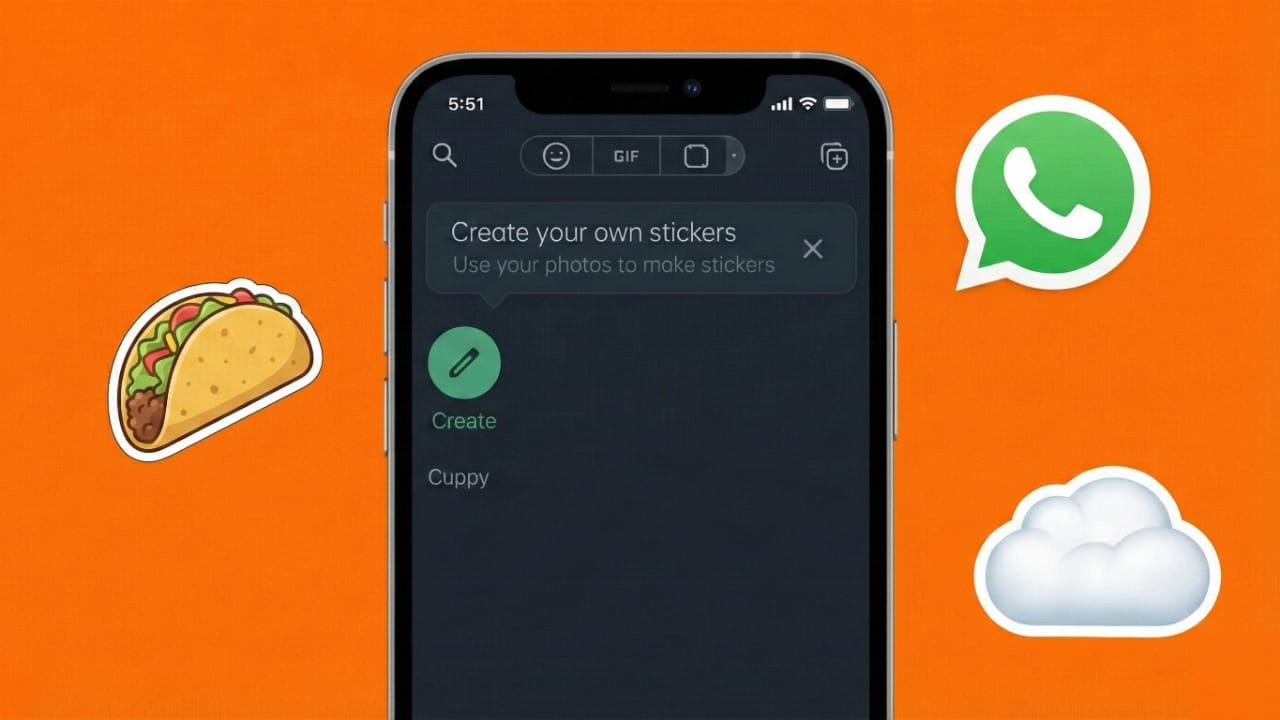
You no longer need third-party apps to make custom stickers on WhatsApp. The app now includes a built-in sticker creation tool that works directly on both Android and iPhone. This makes the process quick, secure, and very easy for anyone to use.
If you want to turn your personal photos into stickers using only WhatsApp’s own features, this guide explains everything step by step in simple terms.
Also read: How to Find Messages on WhatsApp (Android and iPhone)
Things to Check Before You Start
Before creating your first sticker, make sure these basic requirements are met:
- WhatsApp is updated to the latest version
- Your photos are already saved on your phone
- Images have a clean or simple background for better cutouts
- No extra apps, accounts, or downloads are needed
Once these points are covered, you’re ready to go.
How to Make WhatsApp Stickers on iPhone
On iPhone, WhatsApp offers a built-in sticker tool that works straight from the chat screen.
Steps to Create Stickers on iPhone
- Open WhatsApp and enter any chat
- Tap the emoji icon near the message box
- Switch to the sticker section
- Tap the Create option
- Select a photo from your gallery
- WhatsApp automatically removes the background
- Make small adjustments if required
- Tap Send
The sticker is saved instantly and can be reused whenever you want.
How to Create WhatsApp Stickers on Android
Android users can also create stickers without installing anything extra. The steps are very similar, though the exact layout may vary slightly depending on the app version.
Steps to Create Stickers on Android
- Open WhatsApp and go to any chat
- Tap the emoji icon
- Open the sticker tab
- Select Create
- Choose an image from your gallery
- Crop or edit the photo if asked
- Send the sticker
After sending it once, the sticker becomes part of your personal collection.
Tips to Get Better Sticker Quality
If you want your stickers to look neat and expressive, keep these tips in mind:
- Use photos with good lighting
- Avoid busy or messy backgrounds
- Choose close-up images
- Square photos usually work best
- Clear facial expressions give better results
Small improvements in the photo can greatly improve the final sticker.
Where Your Stickers Are Stored
Once created:
- Stickers are saved inside WhatsApp
- You can find them anytime in the sticker panel
- No separate folder is created on your phone
- Stickers stay available unless WhatsApp data is cleared
Everything remains neatly organized within the app.
Can Stickers Be Edited or Deleted Later?
At the moment:
- Stickers cannot be edited after they are sent
- You can remove them from recent stickers
- If changes are needed, you must create the sticker again
For best results, make sure the image looks right before creating the sticker.
Why Making Stickers Without Apps Is a Smart Choice
Using WhatsApp’s built-in sticker tool has several benefits:
- No extra storage usage
- Faster and smoother process
- No risky permissions
- Works without internet after setup
- Safer and cleaner experience
This method is perfect for users who want quick personalization without complications.
Also read: WT Hub – Web Scanner App Review
Final Words
Creating custom WhatsApp stickers without installing any additional app is now simple on both Android and iPhone. All it takes is a photo and a few taps inside WhatsApp.
If you enjoy sharing emotions, reactions, or fun moments through visuals, this feature is an easy and practical way to do it—without cluttering your phone.

I am a passionate Tech Writer with strong industry experience. I enjoy exploring the latest technological innovations and sharing clear, helpful insights with my audience.”