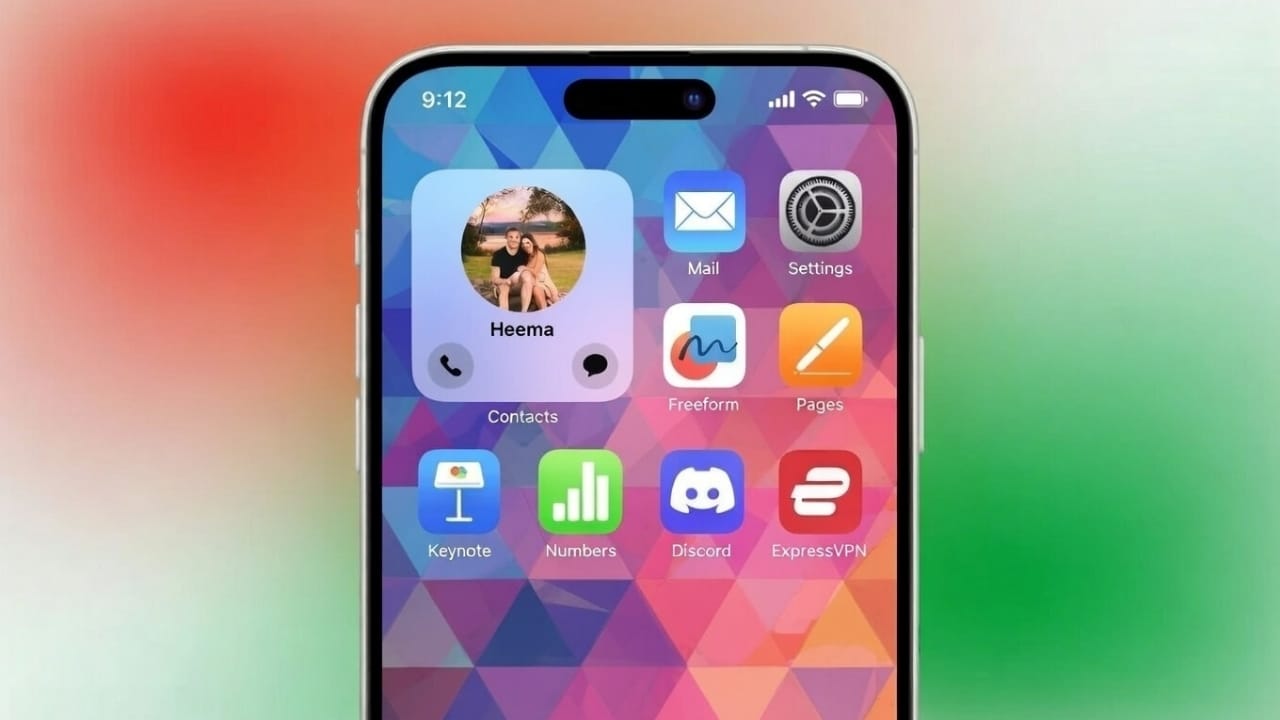
Opening the same WhatsApp conversation again and again can waste time, especially when you talk to someone every day. On an iPhone, you can create a simple shortcut that opens a specific WhatsApp chat with just one tap. This guide explains safe and official ways to do it using built-in iOS features only.
What Is a WhatsApp Chat Shortcut?
A WhatsApp chat shortcut is a quick link that takes you straight to a particular conversation. You do not need to open WhatsApp first or search for the contact. When you tap the shortcut, the chat opens instantly.
Unlike Android, iPhone does not support WhatsApp widgets. However, Apple’s Shortcuts app allows you to create the same type of quick access in a clean and secure way.
Also read: How to Lock Private and Group Chats in WhatsApp on iPhone
Method 1: Create a WhatsApp Shortcut Using the Shortcuts App
This is the best and most reliable option on iPhone.
Step 1: Open the Shortcuts App
Find and open the Shortcuts app on your iPhone.
If it is not installed, download it from the App Store.
Step 2: Create a New Shortcut
Tap the plus (+) icon in the top corner.
Tap Add Action to begin.
Step 3: Select a WhatsApp Action
Search for WhatsApp in the action list.
Choose Send Message via WhatsApp.
Select the contact you want quick access to.
Leave the message box empty if you only want the chat to open.
Step 4: Rename the Shortcut
Tap the shortcut name at the top.
Rename it using the contact’s name.
Tap Done.
Step 5: Add It to the Home Screen
Open the shortcut settings.
Tap Add to Home Screen.
Pick an icon or color if you like.
Tap Add.
You will now see a new icon on your Home Screen. One tap will open that WhatsApp chat directly.
Method 2: Use Siri for Faster Chat Access
If you prefer voice commands instead of icons, Siri can be helpful.
Open WhatsApp and open the chat once.
Say: “Hey Siri, send a WhatsApp message to [contact name].”
After repeating this a few times, Siri learns your habit. It may show that contact in suggestions on the lock screen, search screen, or widgets.
Method 3: Use the Contacts App
This option does not create a Home Screen shortcut, but it still saves time.
Open the Contacts app.
Select the person you message on WhatsApp.
Tap Message and choose WhatsApp.
This makes WhatsApp messaging quicker if you already use the Contacts app often.
Important Things to Remember
- WhatsApp must be installed and up to date
- The Shortcuts app works best on the latest iOS version
- You can create shortcuts for multiple contacts
- Deleting a shortcut will not remove the chat or contact
Can You Create a Shortcut for WhatsApp Groups?
Yes. While setting up the shortcut, simply select a WhatsApp group instead of an individual contact. The shortcut will open the group chat directly.
Also read: How to Remove WhatsApp Call History on Android and iPhone
Final Words
Creating WhatsApp chat shortcuts on iPhone is a simple way to save time and avoid repeated steps. The Shortcuts app offers an official and safe solution without using any third-party apps. Once everything is set up, your most important conversations are always just one tap away.

I am a passionate Tech Writer with strong industry experience. I enjoy exploring the latest technological innovations and sharing clear, helpful insights with my audience.”