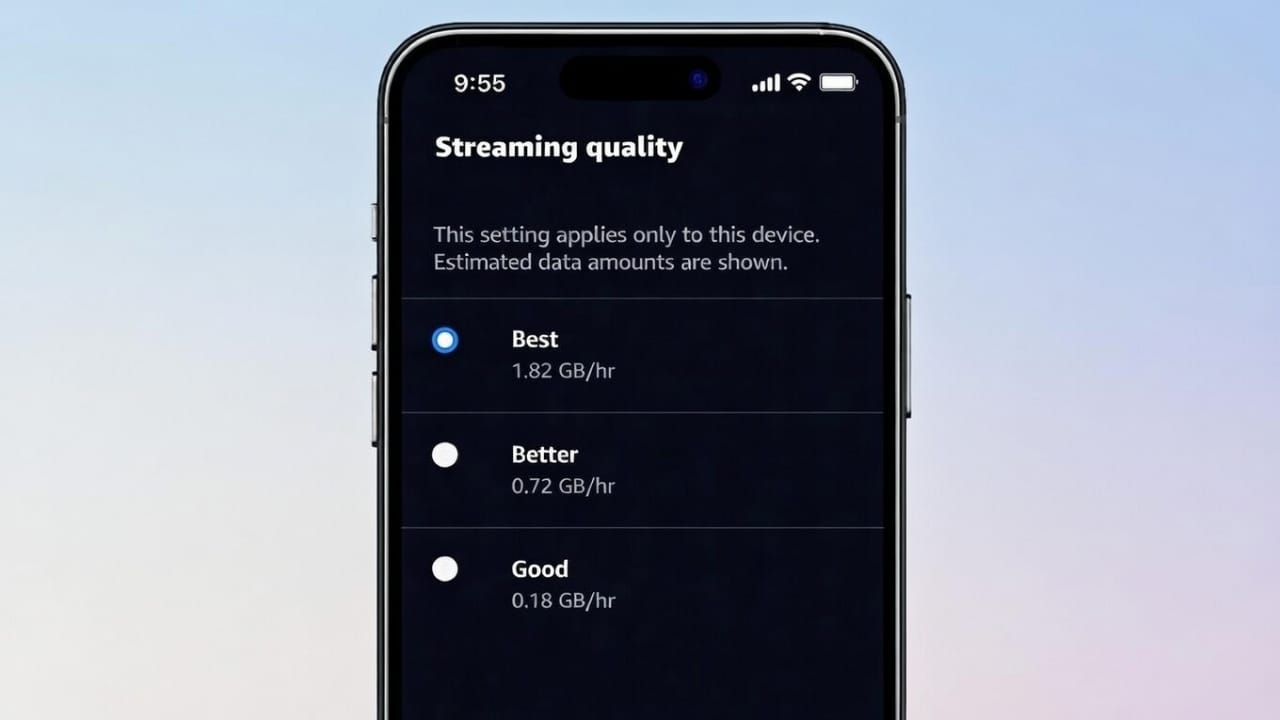
Amazon Prime Video usually selects video quality on its own by checking your internet speed. While this works most of the time, it may not always suit your needs. For example, you might want clearer video on a TV screen or lower quality on your phone to save data.
The good news is that Prime Video allows you to change streaming quality manually on most devices. Below is a simple and clear guide to help you adjust the settings on mobile phones, computers, and smart devices.
Also read: How to Change Your Facebook Name and Username (Simple Guide)
Why Adjusting Streaming Quality Is Useful
Changing video quality can help you:
- Reduce mobile data usage
- Watch without buffering on slow internet
- Enjoy clearer picture quality on bigger screens
- Manage data while traveling or using limited plans
Different devices support different quality options, so the settings may look slightly different.
Streaming Quality Options You’ll See
Prime Video generally offers these choices:
- High / Best – Better picture quality, uses more data
- Medium / Good – Balanced option for quality and data
- Low / Data Saver – Lower quality, saves data
The names may change depending on the device, but the purpose stays the same.
Change Streaming Quality on Android and iPhone
On mobile phones, you can control video quality directly from the app.
Steps:
- Open the Prime Video app
- Tap on your profile icon
- Go to Settings
- Open Stream & download
- Tap Streaming quality
- Choose the option you prefer
You can also set a separate quality level for downloaded videos.
Change Streaming Quality on Desktop or Laptop
On computers, Prime Video mainly adjusts quality automatically, but manual control is available during playback.
Steps:
- Open Prime Video in your web browser
- Start playing any movie or series
- Click the Settings (gear) icon on the video player
- Select the quality you want
This works on both Windows and macOS browsers.
Change Streaming Quality on Smart TVs and Streaming Devices
For Smart TVs, Fire TV Stick, and similar devices, quality settings are found in the app’s menu.
General Steps:
- Open Prime Video
- Go to Settings
- Select Streaming or Playback settings
- Choose your video quality
Some TVs only support automatic quality based on internet speed, so manual control may not appear.
Tips to Reduce Data Usage on Prime Video
If you’re using mobile data or a limited plan, try these tips:
- Choose Data Saver quality
- Download videos using Wi-Fi
- Avoid High or Best quality when not needed
- Close other apps that use the internet
These steps can significantly lower data consumption.
Why Video Quality Changes on Its Own
Sometimes Prime Video lowers quality automatically because:
- Internet speed becomes slow
- Network connection is unstable
- The device cannot handle higher resolution smoothly
This is normal and helps keep playback smooth.
Also read: How to Add a Person to a Telegram Group on Android, iPhone, or Computer
Final Words
Changing streaming quality on Amazon Prime Video is simple and useful. With a few setting changes, you can enjoy better picture quality or save data based on your situation. Once set, you can stream comfortably without frequent buffering or unexpected data use.

I am a passionate Tech Writer with strong industry experience. I enjoy exploring the latest technological innovations and sharing clear, helpful insights with my audience.”