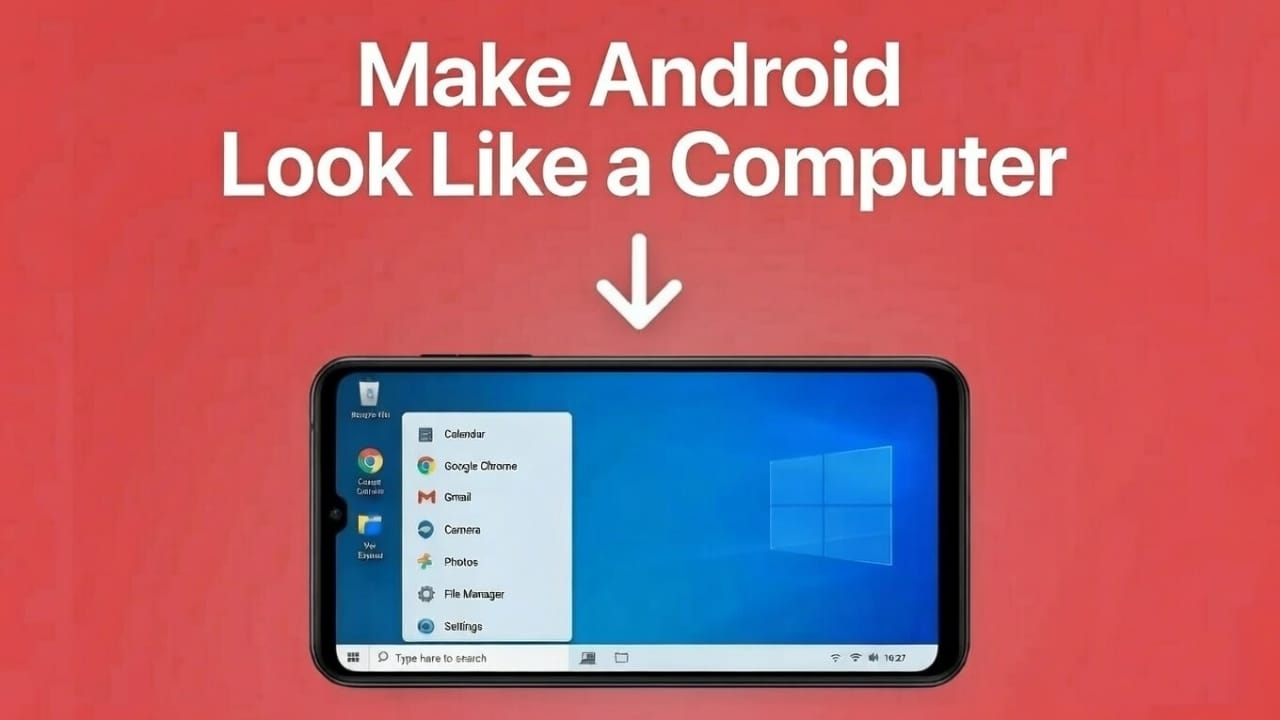
Many Android users like the idea of using their phone in a more organized and computer-style way. If you are one of them, a desktop launcher can completely change how your phone feels. One such option is Win 11 Launcher, which gives your Android device a clean, PC-like interface.
Instead of small icons and crowded home screens, this launcher brings a layout inspired by desktop computers. The result is a neat, professional, and easy-to-use setup that feels different from a regular Android home screen.
Below is a clear and beginner-friendly review that explains how it works and what you can expect.
Also read: WT Hub – Web Scanner App Review
What Is Win 11 Launcher?
Win 11 Launcher is an Android launcher that replaces your default home screen. Its main goal is to make your phone look and behave more like a desktop computer.
Once installed, your device shows:
- A Start Menu similar to a PC
- Large app tiles
- Simple and clean widgets
- A computer-style quick settings panel
- A file manager with a folder layout
This design helps users who prefer a structured layout instead of multiple scrolling screens.
How Win 11 Launcher Gives a Computer-Like Feel
1. Start Menu Design
All apps are listed inside a Start Menu, just like on a computer.
This makes finding apps faster and keeps the home screen clean.
2. Large Desktop Tiles
Apps appear as big tiles instead of small icons.
This improves visibility and gives the screen a true desktop look.
3. Taskbar-Style Bottom Bar
A bottom panel works like a PC taskbar.
It makes switching apps and navigating the phone feel more familiar.
4. Built-In File Manager
The launcher includes a file manager with a clear folder structure.
It feels similar to managing files on a computer, making navigation easier.
5. Windows-Like Action Center
Quick settings such as Wi-Fi, Bluetooth, brightness, and notifications are grouped in one panel.
This layout is inspired by desktop action centers and keeps things organized.
Extra Features That Add Value
Matching Widgets
You get simple widgets for time, weather, battery, and calendar.
They match the overall desktop theme and keep the screen consistent.
Customization Options
You can adjust many elements, including:
- Tile size and colors
- Fonts
- Transparency
- Spacing
- Wallpapers
This allows you to shape the layout according to your taste.
Smooth and Lightweight
The launcher is optimized to run smoothly.
Even phones with basic hardware can handle it without lag.
Is Win 11 Launcher Safe to Use?
Based on its Play Store information:
- Available directly on Google Play
- Over 5 million downloads
- Strong user rating
- No unnecessary permissions
- Checked by Google Play Protect
Installing it from the official Play Store makes it safe for regular use.
Optional Download Information
If you like the idea of a computer-style Android interface, you can find the launcher on the Play Store:
Win 11 Launcher by Spark Planet
Insatll
Downloading is optional. You should try it only if this layout suits your preference.
Also read: E2PDF – Call Backup Restore App Review
Final Verdict
Win 11 Launcher is a solid option for users who want a desktop-style experience on Android.
It offers a Start Menu, large tiles, widgets, a taskbar layout, and a clean action center inspired by computers.
If you enjoy a tidy setup or want a fresh look for your phone, this launcher is definitely worth exploring.

I am a passionate Tech Writer with strong industry experience. I enjoy exploring the latest technological innovations and sharing clear, helpful insights with my audience.”