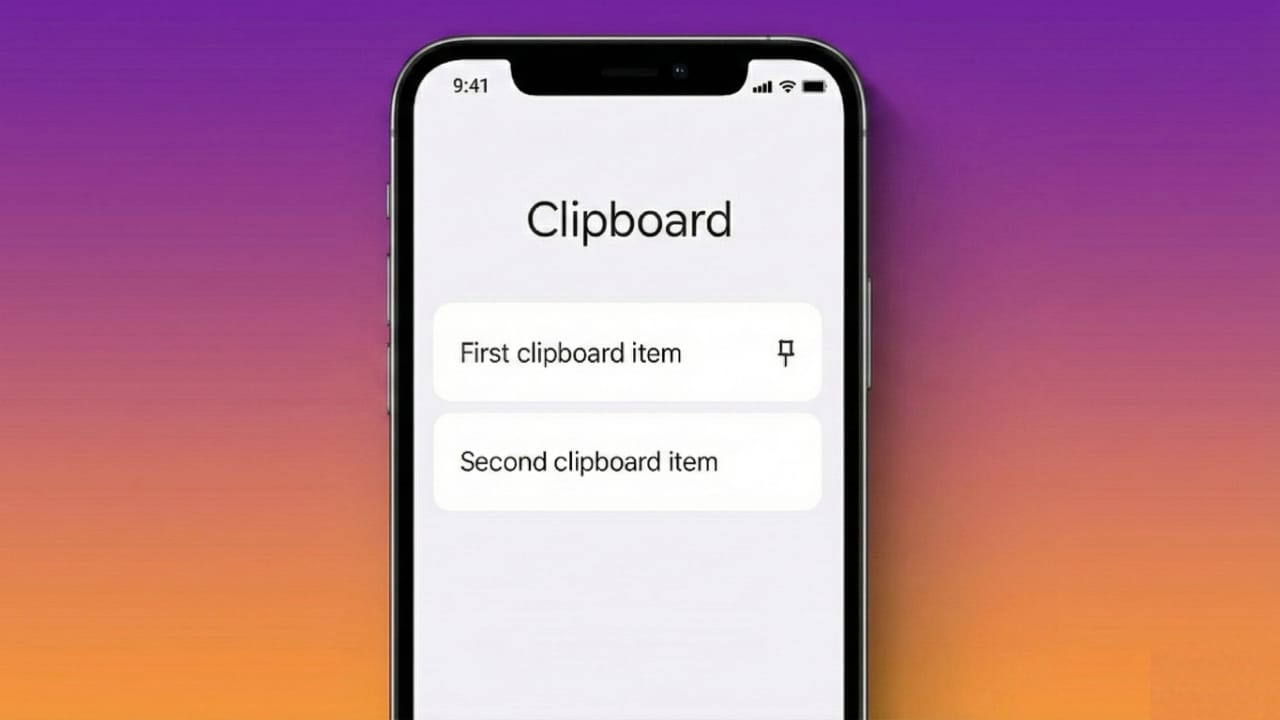
We copy and paste things on our phones every single day—whether it’s a message, a link, or a piece of text for work. But most Android users never go beyond the basic Copy and Paste buttons, even though their phone has a powerful clipboard tool built right in.
The clipboard manager on Android can help you store multiple copied items, paste old text instantly, and manage everything in a neat, easy way. Once you learn how it works, you’ll save time and avoid mistakes while multitasking.
Let’s understand it in the simplest way.
What Is the Clipboard Manager in Android?
Imagine a small storage box inside your phone. Every time you copy something, it gets saved there temporarily.
Older Android versions allowed only one item at a time, but now most devices come with a multi-item clipboard manager.
Also read: How to Enable or Disable YouTube Dark Mode – Simple Step-by-Step Guide
With it, you can:
- Save several copied texts at once
- Check old copied items
- Paste anything with a single tap
- Pin important text so it doesn’t disappear
- Remove private info for safety
In short, it’s your personal control panel for copy–paste tasks.
Where Do You Find the Clipboard?
It depends on the keyboard you use. The two most common keyboards—Gboard and Samsung Keyboard—have their own clipboard buttons.
If you use Gboard:
- Open any app where the keyboard appears.
- Tap the typing area.
- Look for the Clipboard icon at the top of the keyboard.
- Tap it to view everything you’ve copied.
If you use Samsung Keyboard:
- Open the keyboard.
- Tap the Clipboard icon on the toolbar.
- Your saved text and images will appear instantly.
If you don’t see the button, you may need to turn on the clipboard feature from the keyboard settings.
How to Use the Clipboard Manager Efficiently
1. Store Multiple Copied Items
You don’t have to worry about losing something you copied earlier.
Just keep copying whatever you need—Android adds each new item to the clipboard list. This is especially useful for students, office work, or fast messaging.
2. Pin Text You Use Frequently
The clipboard automatically deletes older items, but pinned items stay forever.
Examples of what you can pin:
- Your email
- UPI ID
- Home address
- Common replies
- Templates or hashtags
This saves a lot of time in daily typing.
3. Paste Instantly with One Tap
Open the clipboard panel and tap the text you want to paste.
No long pressing, no extra steps—just simple and quick.
4. Delete Private Information
Things like OTPs and passwords should not stay in the clipboard.
To remove them:
- Open your clipboard
- Long press the sensitive item
- Tap Delete
This keeps your personal data secure.
5. Copy Images, Links, and More
Modern keyboards don’t just handle text—they also support:
- Images
- Screenshots
- URLs
If you copy an image, it appears in the clipboard with a small preview. You can paste it directly into chats or messages.
6. Turn On Clipboard Suggestions (Gboard)
Gboard can show your recently copied items above the keyboard while typing.
Enable it from:
Settings > Gboard > Clipboard > Show recently copied text and images
This makes pasting even quicker.
Bonus: Use Long Press for Extra Options
On most apps, long pressing any text gives you shortcuts like:
- Copy
- Select all
- Share
- Translate
- Search the web
These options help you work faster without switching screens.
Also read: How to Sync iCloud Photos with Google Photos – Easy Step-by-Step Guide
Final Words
The Android clipboard manager is a small feature that makes a big difference. Once you start using it fully, your typing, messaging, and multitasking become much smoother. Whether you are studying, working, or just chatting, mastering the clipboard will make everyday phone tasks a lot easier.

I am a passionate Tech Writer with strong industry experience. I enjoy exploring the latest technological innovations and sharing clear, helpful insights with my audience.”