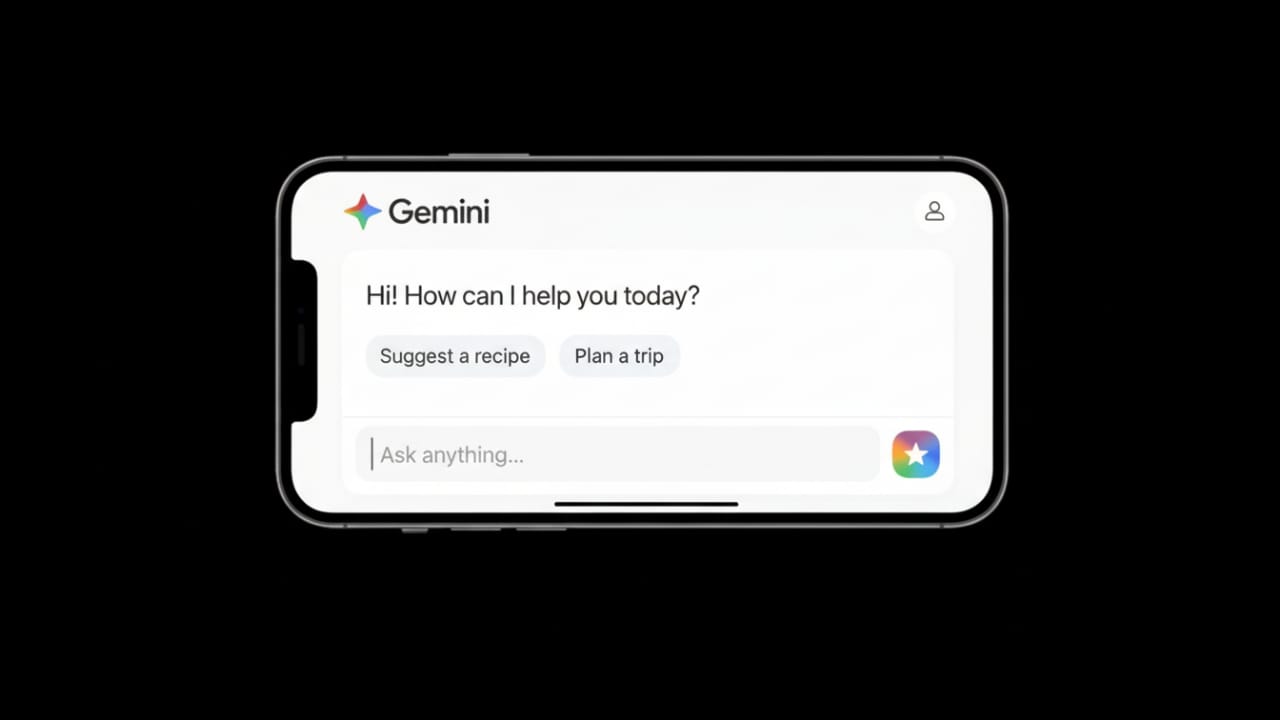
Artificial intelligence is slowly becoming part of our daily online routine. One popular tool in this space is Google Gemini. If this is your first time using it and you’re not sure where to begin, this guide will help you understand everything in a clear and easy way.
Google Gemini can support you with writing, learning, planning, coding help, and idea generation. You don’t need any technical skills to get started.
Also read: How to Use Meta AI: An Easy Beginner’s Guide
What Exactly Is Google Gemini?
Google Gemini is an AI assistant created by Google. It is designed to understand your questions and reply with useful information. You can use it to explain topics, write content, summarize text, and assist with creative or technical tasks.
Gemini runs in your web browser and can work alongside other Google services.
You can use it for things like:
- Writing emails, blogs, or notes
- Understanding difficult topics in simple language
- Coming up with ideas
- Summarizing long articles or documents
- Translating text
- Getting basic coding help
- Organizing tasks or plans
Step 1: Open Google Gemini
To begin using Gemini, follow these simple steps:
- Open the official Gemini website in your browser
- Log in with your Google account
- Allow the required permissions
- You’ll see a chat screen where you can start typing
There is no installation or complex setup involved.
Step 2: Ask Your First Question
Once the chat box is visible, type what you want help with.
Examples:
- Explain artificial intelligence in easy words
- Help me write a formal email
- Make a simple study plan
- Suggest ideas for blog posts
Hit Enter and Gemini will reply within seconds.
Step 3: Be Clear with Your Request
Clear instructions give better results.
Instead of writing something vague like:
- Write about marketing
Try something more detailed:
- Write a 500-word beginner-friendly article on digital marketing with examples
The more specific you are, the more useful the response will be.
Step 4: Continue the Conversation
You don’t need to start a new chat every time. You can ask follow-up questions in the same conversation.
Example:
- You: Explain cloud computing
- Gemini: Gives an explanation
- You: Make it easier to understand
- You: Add real-life examples
Gemini remembers the context during the same chat.
Step 5: Change Style or Format Anytime
You can ask Gemini to adjust its response in many ways, such as:
- Use bullet points
- Shorten the answer
- Write in a formal or casual tone
- Simplify the language
- Create a summary
- Show the information in a table
This makes it useful for different types of work.
Step 6: Check and Improve the Output
AI tools are helpful, but you should always review the content before using it seriously. Check facts, correct small mistakes, and adjust the wording to match your purpose.
Think of Gemini as a helpful assistant, not a final authority.
Tips to Get Better Results
- Be specific with your questions
- Mention word limits if required
- Tell Gemini who the content is for
- Break large tasks into smaller requests
- Do not share personal or sensitive information
Clear communication leads to better answers.
Who Can Use Google Gemini?
Gemini can be useful for many people, including:
- Students
- Writers and bloggers
- Office professionals
- Developers
- Content creators
- Business owners
Anyone with a Google account can try it.
Free and Paid Options
Google Gemini usually offers a free version with basic features. Some advanced tools may be available through paid plans, depending on location and updates from Google.
Also read: How to Start Using ChatGPT: A Simple Guide for Beginners
Final Words
Using Google Gemini is straightforward. Log in, ask your question, and improve your prompts as you go. Treat it like a smart digital helper that works best when you give clear instructions.
With regular use, you’ll learn how to get faster, better, and more useful responses—making your daily tasks easier and more productive.

I am a passionate Tech Writer with strong industry experience. I enjoy exploring the latest technological innovations and sharing clear, helpful insights with my audience.”